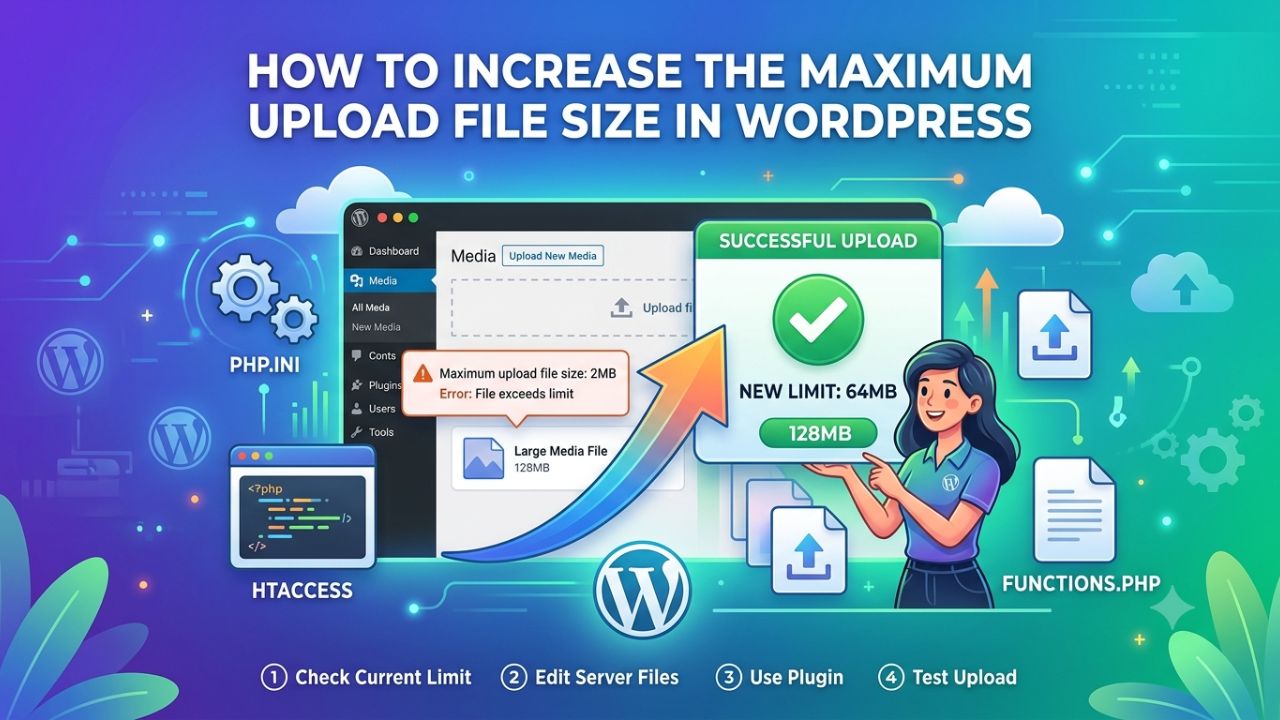
Are you looking for ways to increase the maximum file upload size in WordPress? By default, WordPress has a limit on the file size you can upload and this can range from 3MB to 500 MB to maintain website security.
WordPress comes with its own media uploader. It makes uploading files to a blog an easy task – there is no need to deal with FTP clients or File Managers.
In WordPress, when you try to upload a bigger size media file, you get a message “file exceeds the maximum upload size for this site“.
The error can be very frustrating. Some times low file upload size limits can stop you from uploading files via media uploader, or install plugins and themes. In this blog, we’ll explore ways to increase the WordPress maximum upload file size.
Check Your WordPress Maximum File Upload Size
Before actually diving into increasing WordPress upload size limit, lets first check what your current upload size limit is.



Check Through Media Library
- Login to your WordPress Admin.
- Go to Media > Library > Add New Media File as shown in the screenshot.
- Look for the maximum upload file size displayed below the upload area.
If the limit is smaller than the file you want to upload, follow one of the methods below to increase it
How to increase the maximum upload size in WordPress
There are many different ways you can change the upload limit in WordPress. We will show you different methods and you can apply any of them that you are comfortable with.
1. Modify .htaccess to Increase the Upload Limit
Many hosting providers allow you to change the PHP settings via .htaccess file. To increase WordPress upload limit, log into your web hosting cPanel account and go to the root directory where your WordPress is installed.
Open up the .htaccess file and add the following code at the end.
php_value upload_max_filesize 256M
php_value post_max_size 256M
php_value max_execution_time 300
php_value max_input_time 300
Once added, don’t forget to save the file.
Now go to your WordPress dashboard Media> Add New and check whether the upload limit is changed.
2. Increase WordPress upload size using php.ini
This method is most suitable for WordPress sites with VPS hosting as shared hosting. Go to your hosting cPanel account and go to the root folder. Find the php.ini file. If there is no php.ini file, simply create a new one.
Edit the php.ini file and add the following lines.
memory_limit = 256M
post_max_size = 256M
upload_max_filesize = 256M
Once done, save the file.
Now recheck your maximum upload file size by going to Media> Add New.
3. Update Functions.php
There are cases where we have seen that just by adding the following code in the theme’s functions.php file, you can increase the upload size:
@ini_set( 'upload_max_size' , '64M' );
@ini_set( 'post_max_size', '64M');
@ini_set( 'max_execution_time', '300' );
4. Increase Maximum Upload File Size via cPanel
cPanel can be used to increase the maximum upload file size. You can increase the maximum upload file size through its settings.
To increase the upload file size in cPanel, go to Select PHP Version.
Click Options, then scroll down to adjust upload_max_filesize, post_max_size, memory_limit, max_execution_time, and max_input_time.
5. With Plugins
If you don’t feel comfortable editing files, you can increase the file size limit with wordpress plugin. Even if you don’t have much knowledge about technology, you can still get a connection by following simple steps.
6. Contact Your Hosting Provider
If you are still facing issues regarding the ‘Maximum Upload File Size’, you can contact your hosting provider. You can reach out to the hosting company via chat or email. It’s a quick fix on their end and usually takes just a few minutes.
Frequently Asked Questions
How do I increase the maximum page size in WordPress?
To increase the maximum page size in WordPress, adjust the php.ini or .htaccess file.
What is the maximum file size allowed in WordPress?
WordPress does not have one universal maximum upload size.
Can I increase the WordPress upload limit to 128 MB or 512 MB?
Yes, if your hosting plan and server configuration allow it.
How can I check the maximum upload file size in WordPress?
Open your WordPress dashboard and go to Media → Add New.
Also Read:
Conclusion
To increase the maximum file upload size in WordPress, you can change your PHP settings through your hosting control panel, edit configuration files such as .htaccess or php.ini, or use a plugin.
Once you’ve increased your WordPress upload limit, test the changes by uploading the files. As you can see, increasing the WordPress maximum upload file size isn’t too complex, it’s just a matter of knowing where to look and which commands to use.
In this tutorial, we have covered different ways to change the WordPress File upload limit. What solution worked for you? Do let us know in the comment section.